 Pin MasterWindows app
Keep Any Window Always on Top in Windows
Pin Master pins notes, calculators, chats or timers above every other window with one click or Ctrl+Alt+T. Free, offline, no ads.

Everything you need to pin a window
Pin with one click
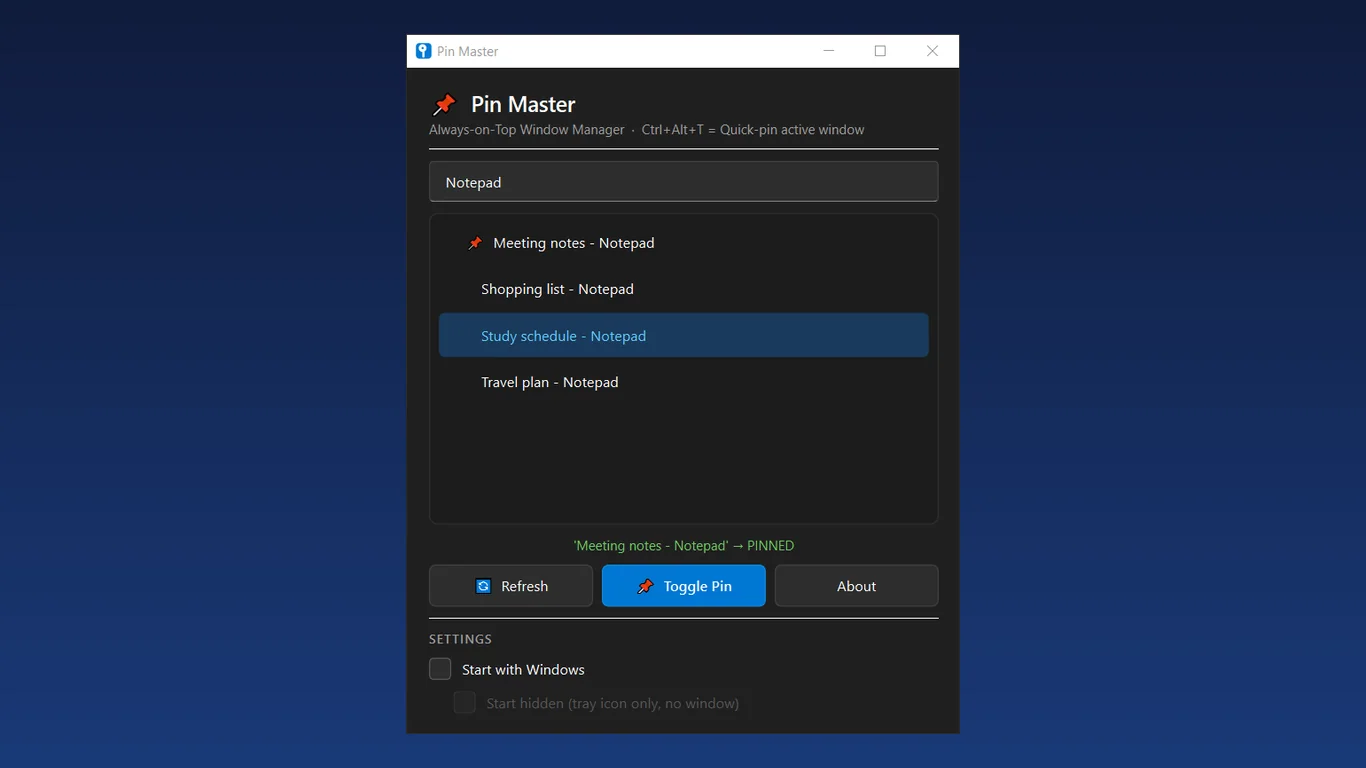
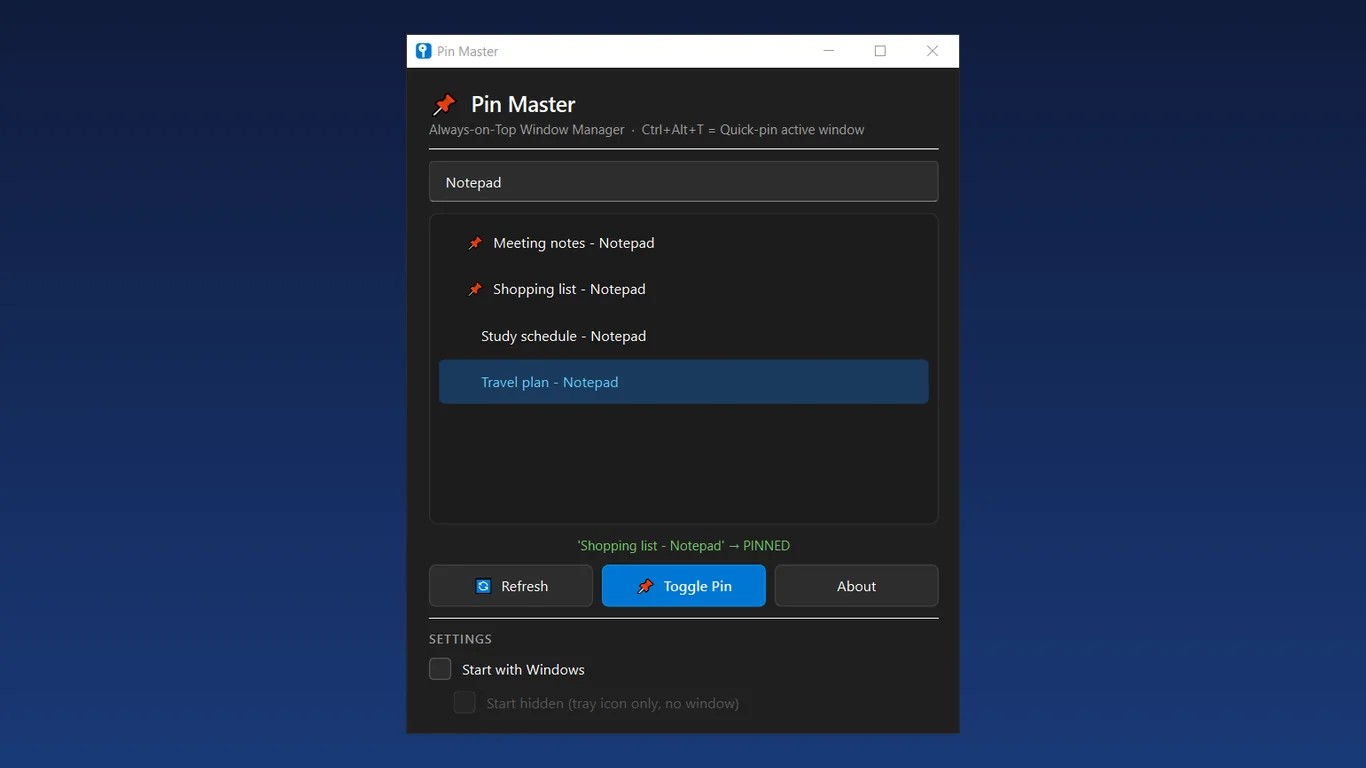
Pick a window from the list and press Toggle Pin, or double-click it. It stays above all other windows.
Ctrl+Alt+T shortcut
Pin or unpin the window you are using right now with one global keyboard shortcut.
Search your open windows
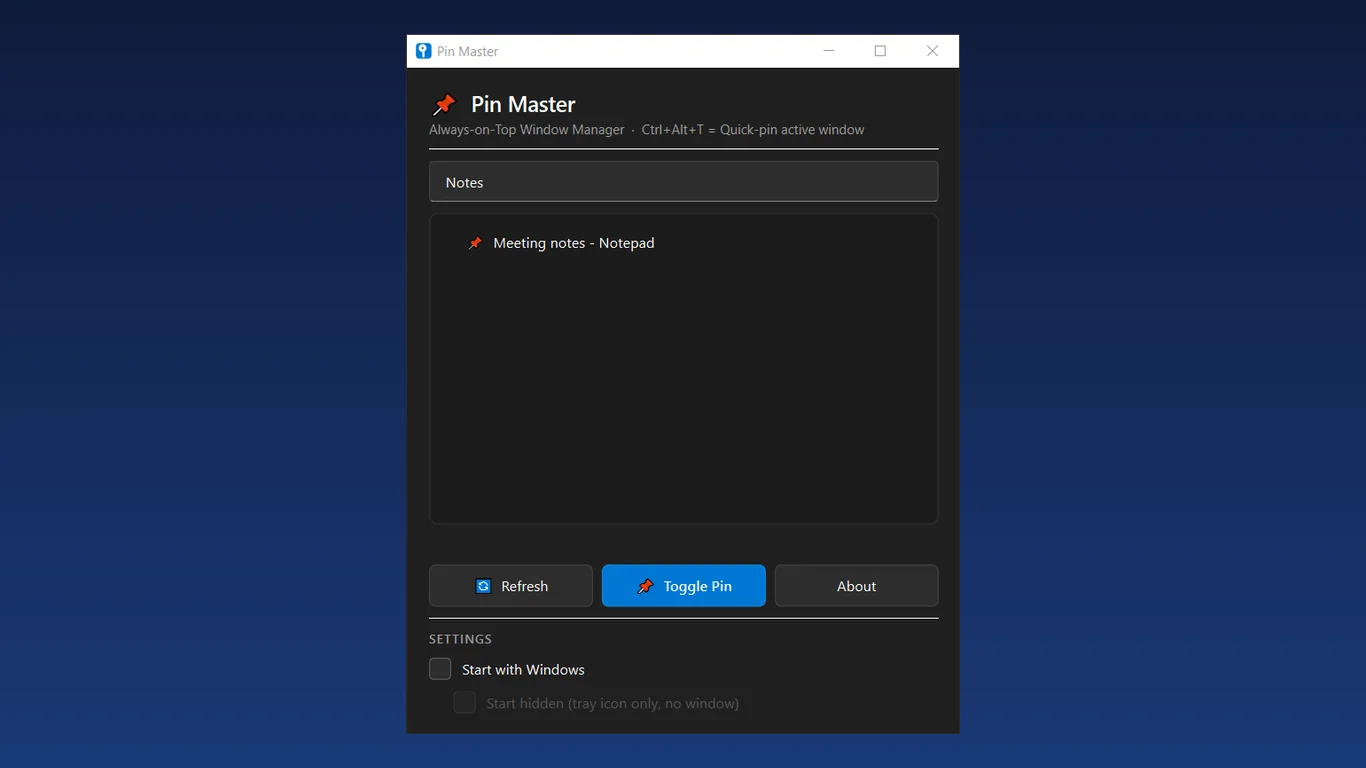
Type to filter the list and find the window you want fast, even with many apps open.
Pinned windows stand out
Pinned windows get a pin icon and sit at the top of the list, so you see what is pinned.
Quiet in the system tray
Close the window and Pin Master stays in the tray. Optionally start with Windows, hidden.
Private and offline
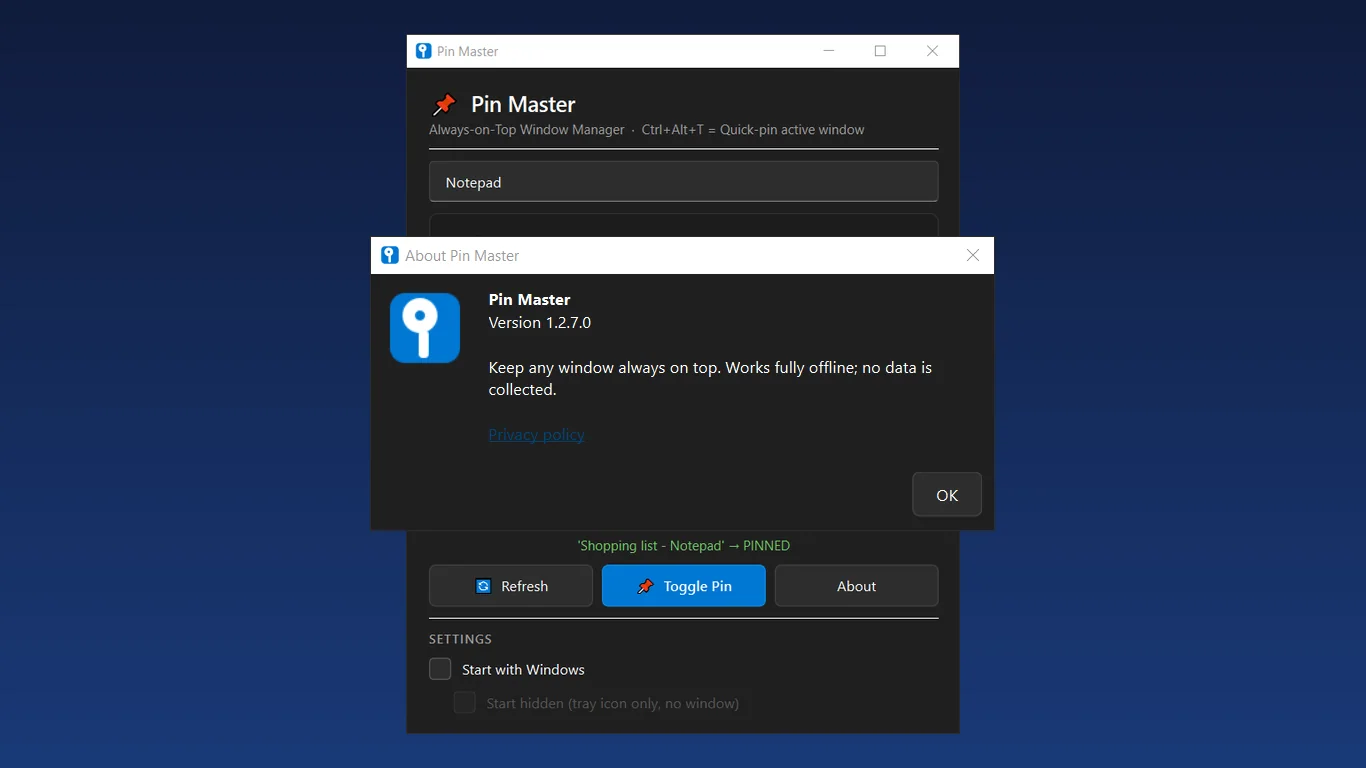
No ads, no accounts, no data collected. The shortcut listens only for Ctrl+Alt+T.
How it works
- Get it from the Microsoft Store and open Pin Master.
- Pick a window from the list and press Toggle Pin, or press Ctrl+Alt+T.
- Your window stays on top. Press the same shortcut again to unpin.
Screenshots
Great for
Notes while you work
Keep a notes window or reference document visible while you type in another app.
Calculator or timer
Leave a calculator or timer floating above your spreadsheet or browser.
Chats and video calls
Keep a chat or call window in view while you work on something else.
FAQ
How do I keep a window always on top in Windows?
Open Pin Master, pick the window and press Toggle Pin. You can also press Ctrl+Alt+T to pin or unpin the window you are currently using.
Is Pin Master free?
Yes. Pin Master is free in the Microsoft Store. It has no ads and no accounts.
Is Pin Master safe? Does it record my keystrokes?
No. The global shortcut listens only for Ctrl+Alt+T. No keystrokes are recorded or stored, and the app does not collect or send any data.
Does Pin Master need an internet connection?
No. It works fully offline.
Can it start with Windows?
Yes, as an option. You can also start it hidden so only the tray icon shows.
What languages and systems does it support?
Pin Master is a Windows desktop app from the Microsoft Store. The interface is in English only.
Get Pin Master free from the Microsoft Store